
Dresl subtitling specializes in creating a customized subtitled video from excerpts of client videos. For example, given two videos of psychotherapy sessions, the service might create a subtitled video that starts with two excerpts from session A, followed by an excerpt from session B, and another excerpt from a later moment in session A. That concatenated video will be subtitled.
Optionally, excerpts in the final video can be preceded with a screen that explains the respective upcoming portion.
The Process
The client generates a 'cutlist', a spreadsheet that lists excerpts from a collection of client videos with their start and stop times. They upload this spreadsheet, and the client videos to the dresl.com workspace that was shared with them by email.
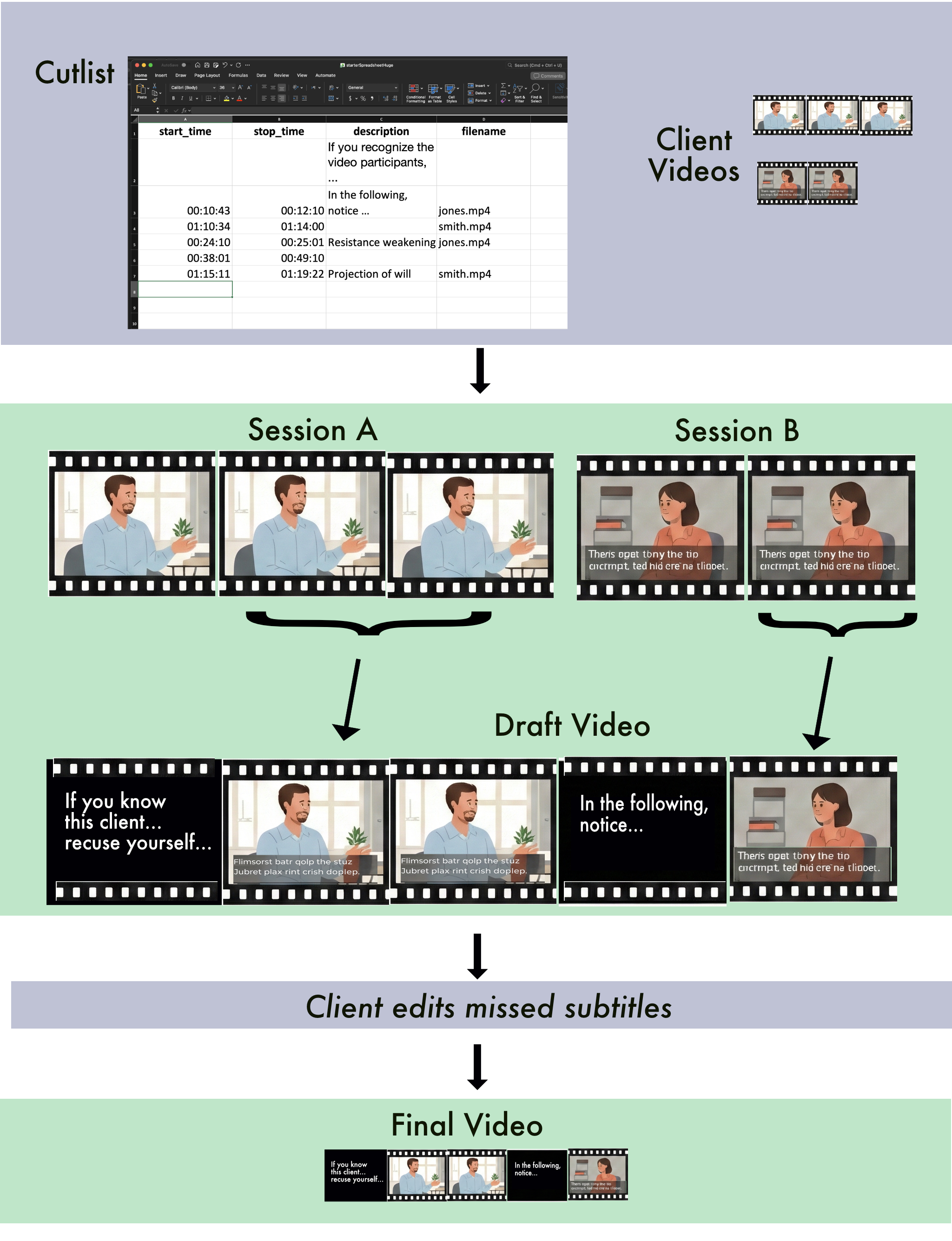
Dresl.com splices together a subtitled draft video from the excerpts, and places that video, and a subtitles transcript into the shared workspace.
The client downloads these two files. Using a subtitles editing tool they correct errors in the transcript. There will always be errors. The transcription AI is not perfect. This process can be time consuming, so it is important to allow for this process before a planned presentation.
After uploading the corrected subtitles, Dresl.com generates the final video for the client to download. Two output videos are provided. One with the subtitles 'burned in'. Those subtitles cannot be turned off or modified. The second video will contain a subtitles track that one can turn on and off in common video players. One can also add additional subtitle tracks in other languages.
The Cutlist
The cutlist spreadsheet specifies all excerpts from, potentially, several video sessions. A starter cutlist is available here: Download starterCutlist.xlsx. Optionally, an opening statement can occupy the first row.
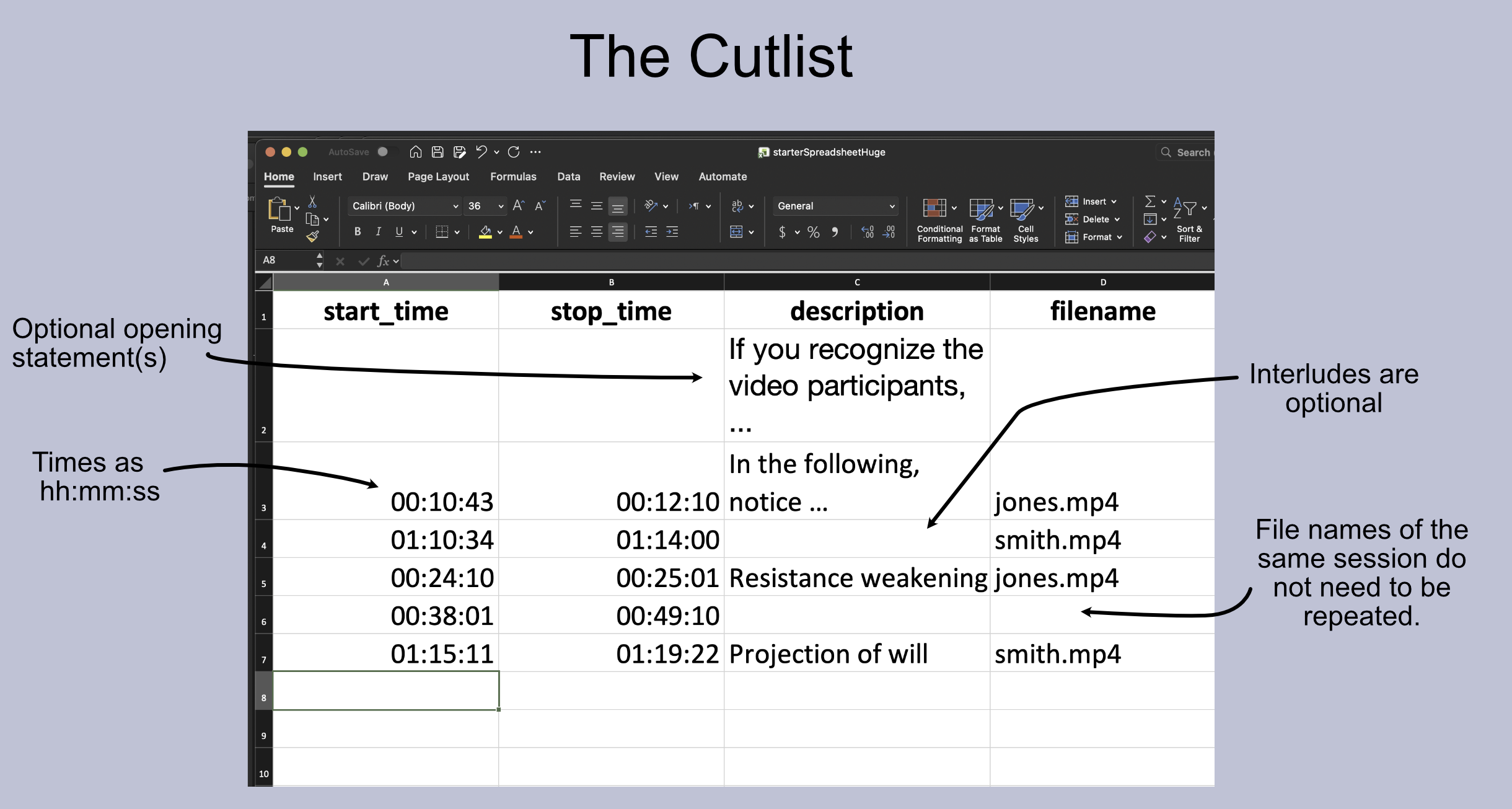
Each excerpt is specified on one line of the cutlist. The 'description' column is optional. If provided, it generates a transition to the respective row's excerpt. This transition is called an 'interlude', and can be used to prepare the audience's attention.
The file names column needs to contain the video file name from which the respective row's excerpt is to be taken. Only the file name, not the entire path needs to be provided.
Note: The file name may be skipped if the row's excerpt is from the same video as the one above.
Subtitles Editing
Transcription software makes mistakes. The severity depends on the quality of the video sound tracks. Clients will need to download the draft video, and a subtitles text file (extension .srt). While that text file may be edited with any text editor, it is much safer to do that with a dedicated subtitle editor. For Windows, Subtitle Edit has a good reputation.
However, the Aegisub program works on Mac, Windows, and other types of machines, and is used as follows, after it has been installed and customized (see Customizing Aegisub). Both programs are free.
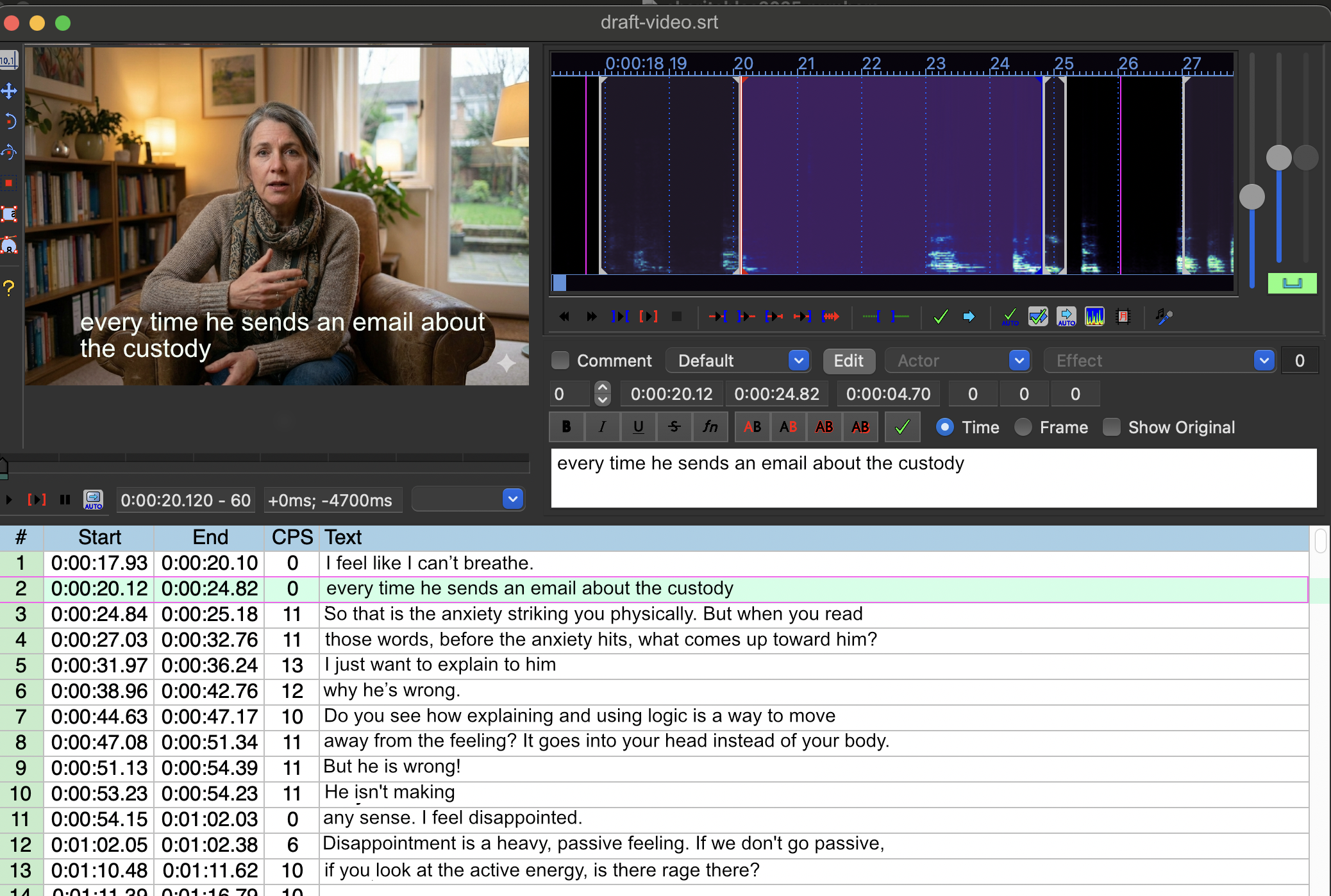
The program's user interface is partitioned into four relevant areas:
- The video pane: shows the video with subtitles.
- The audio pane: to the right of the video, showing where sound occurs (white areas).
- The editing text box: located below the audio pane.
- The timing grid: on the lower half of the display.
Placing the cursor onto a line in the grid shows that line in the editing box, displays its audio in the audio pane, and shows the text as a subtitle on the video. Tapping the space bar plays that line through the computer speaker.
Note: Ignore the line wrapping on the video in Aegisub. The text arrangement will be different in the actual final video.
Edits in the edit box are reflected on the video pane subtitles, and in the timing grid. Rather than listening line by line, one can type cmd-P (Mac) or cnt-P (Windows) to play continuously. Another cmd/cnt-P stops the playback.
When done, the folder that holds the video and .srt subtitles file will also contain a file of the same name as the subtitles file, but with the extension .ass. Upload that file to the shared workspace, and notify Dresl.com that it is available for the next processing step.
Opening a Video for Editing
To create the view shown in the figure above, load first the subtitle file (the one with the .srt extension). Then open the video using the menu bar:
- File -> Open Subtitles... (This operation will show the grid)
- Video -> Open Video... (To open the video and sound)
Customizing Aegisub
Aegisub contains many features irrelevant to our purpose. To expose only the important parts, we recommend the following customizations:
- Thin out unwanted grid columns: Right-click on the column header and (un)-check all columns other than Start, End, CPS, and Text. Use View -> Hide Tags and View -> Hide Toolbar.
- Change font size: Aegisub -> Settings -> Interface: Change Font Size and click Apply.
- Automatic crash recovery: Aegisub -> Settings -> Backup: Check Enable, Autosave after every change, and Automatic Backup.
- Visibility: Aegisub -> Settings -> Interface -> Colors: In the Subtitle Grid section, change "In frame background" to a darker color.
- Enlarge video: Change the percentage zoom level underneath the video pane.
The CPS column stands for "characters per second". For non-native speakers, this number should not exceed 15. For native speakers, 23 will work. The draft video will have these numbers pre-set in the range for non-native speakers.